Publishing
Google Play 12 Testers and 14 Days Requirement Explained (2026)
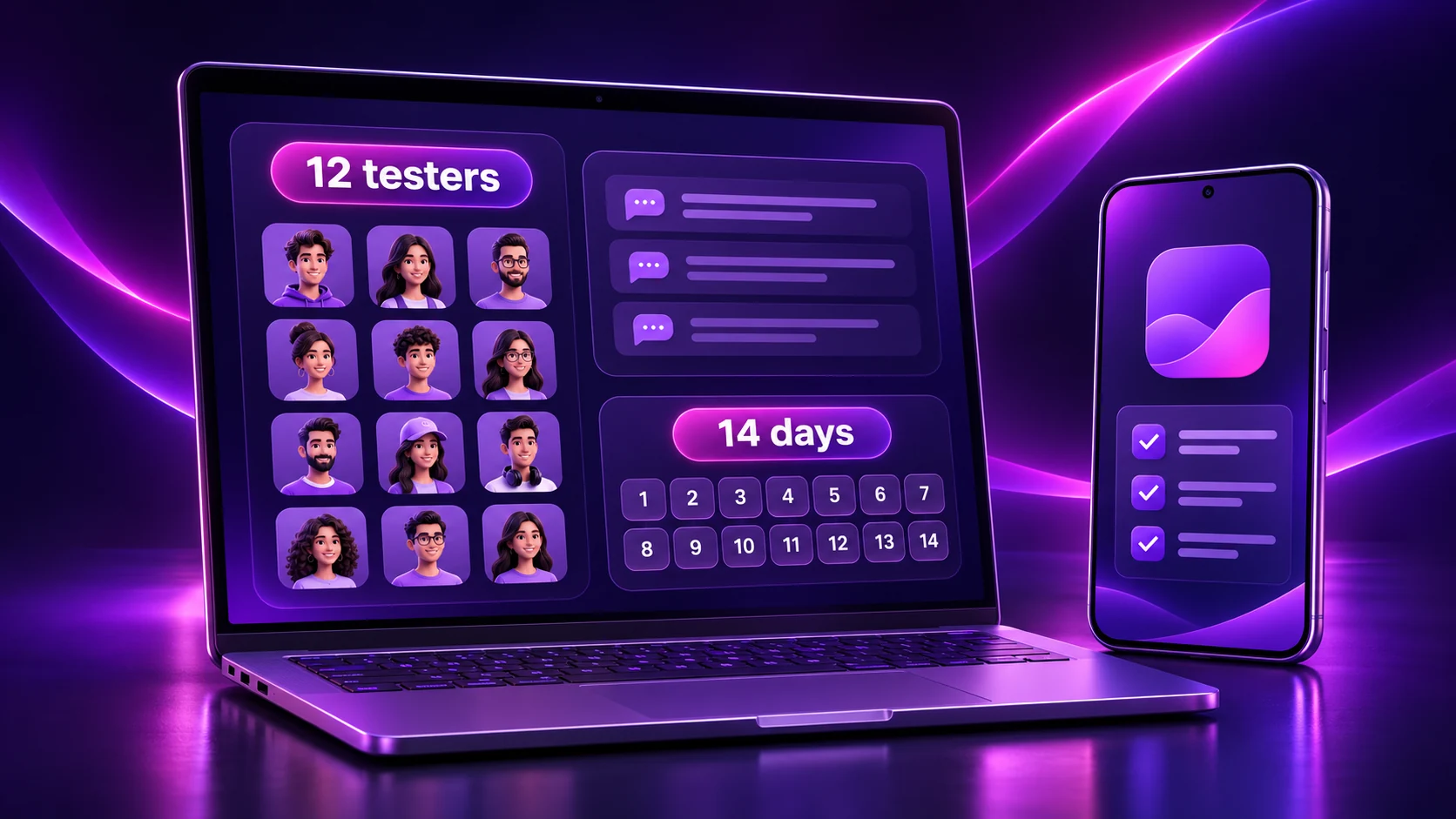
The Google Play 12 testers 14 days requirement applies to personal developer accounts created after 13 November 2023. Before requesting production access, an app needs at least 12 closed testers continuously opted in for the preceding 14 days. Completing this minimum makes you eligible to apply; it does not automatically publish your app.
GOOGLE PLAY · CLOSED TESTING · 2026
Prepare the app.
Test the real journey.
Understand account eligibility, continuous tester opt-in and the steps between a test build and a production release.
Original illustration; not a Google Play Console interface.
Policy checked against the official Google Play documentation on 5 November 2026. Use the requirements shown in your own Play Console account when planning a release.
What is the Google Play 12 testers and 14 days requirement?
The rule is a pre-production checkpoint for affected personal accounts. Think of it as three separate gates: finish app setup, complete the qualifying closed test, then request production access. A release can pass the first two gates and still need work at the third.
Google describes testing as a way to identify functional and usability problems before a public launch. For a website-powered app, a successful cloud build is only the starting point: login, navigation and the main task still need testing inside the installed app. The question is whether someone can reliably use the finished experience.
Who needs to complete the 12 testers requirement?
Google specifies personal developer accounts created after 13 November 2023. Its app-setup guidance also states that the specific testing requirement does not apply to personal accounts created before that date. Check your account type and Dashboard rather than assuming the rule applies to everyone.
| Account situation | This specific 12/14 requirement | What to check |
|---|---|---|
| Personal account created after 13 November 2023 | Applies before production access | App setup, closed-test eligibility and the application |
| Personal account created before that date | Not covered by this specific new-account requirement | Current account and app release requirements |
| Organization account | Not the account type targeted by this personal-account rule | Organization verification, app quality and release requirements |
These distinctions do not exempt any account from applicable Google Play policies. Choose the account type that honestly represents the publisher; changing a business identity just to avoid testing is not a sound launch plan.
How does the 14-day closed testing period work?
Count continuous opt-in, not the date you created the track. An invitation list records who may join; it does not prove they accepted. Google’s requirement concerns qualifying testers at the time you apply. Its FAQ explains that opting out and returning does not combine separate shorter periods into one continuous period.
The following is a worked planning example derived from that continuity rule, not a promise about exactly when Console counters refresh:
| Event | Planning consequence |
|---|---|
| Twelve people opt in on Day 0 | Keep each person enrolled and confirm actual participation. |
| A replacement joins on Day 5 | That person’s continuous period starts later; they do not inherit the original group’s time. |
| One original tester leaves on Day 9 | The remaining eleven retain their own continuity. The replacement has not yet completed fourteen days. |
| The replacement reaches fourteen continuous days around Day 19 | Recheck eligibility in Console. Do not assume the original Day 14 launch target still works. |
A small recruitment buffer is sensible, but it is our recommendation rather than an additional Google minimum. Enrollment continuity and meaningful app use are different: a list of opted-in accounts is not a substitute for useful testing and feedback.
Which Google Play testing track should you use?
| Track | Useful purpose | For this publishing journey |
|---|---|---|
| Internal testing | Small-team checks before inviting the wider cohort | Useful preparation; it does not replace the qualifying closed test. |
| Closed testing | Controlled access for selected testers | The required qualifying route for affected accounts. |
| Open testing | A publicly visible testing program | For affected accounts, available after production access. |
| Production | Public distribution in selected markets | A later release stage, following the applicable access and review requirements. |
Use Google’s testing-track setup guide for the current controls. Someone enrolled in internal testing must leave it before joining an open or closed test. Check this when an invited tester cannot receive the expected version.
How to set up closed testing in Google Play Console
- Access the publisher account. Complete the account tasks shown in Console. If you are starting from scratch, read the Google Play developer account guide.
- Create and configure the app. Use Create app, then follow the Dashboard setup tasks. Prepare truthful listing details, contact information, privacy information and required declarations.
- Prepare a suitable AAB. Keep the intended package identity, signing setup and version information consistent. The APK versus AAB guide explains how testing files differ from a store submission bundle.
- Configure the closed track. Open Test and release → Testing → Closed testing. Use Manage track, or create an additional track when appropriate.
- Add eligible testers. In Testers, choose an email list or Google Group and provide a feedback channel. Testers need a Google or Google Workspace account; group-based testers join the group before opting in.
- Prepare and release the test build. Create the release, upload the bundle, enter release notes and address blocking errors. Follow Google’s release preparation and rollout guide; a draft upload is not a distributed test.
- Share the opt-in link. Once the test is published, send the shareable link and clear joining instructions. Google notes that initial test links and subsequent changes can take time to become available.
- Confirm joining and collect feedback. Ask testers to use the intended account, accept the test and install the available build. Keep a private opt-in and feedback log.
- Maintain the qualifying period. Monitor participation, resolve issues and retest fixes. Do not remove people simply because you already have enough invitations.
- Apply when eligible. On the app’s Dashboard, choose Apply for production when available and complete the requested information.
For the complete release preparation beyond tester recruitment, use AppCrafto’s Google Play publishing checklist. Keep a single release record containing the build version, tester instructions, known issues and owner of each fix.
Where can you find 12 Google Play testers?
Start with people who resemble the app’s intended users: colleagues, existing customers who volunteer, friends and family with suitable devices, or relevant developer communities. Ask permission before sharing a test invitation and explain what the app does.
A good invitation states the expected testing window, the main tasks, the feedback channel and whether any test accounts are provided. For a shop, recruit people comfortable browsing and checking out; for a booking app, include people who actually make appointments.
Do not buy bots, fabricated feedback or guaranteed-approval claims. A reciprocal developer group is useful only when people genuinely test each other’s apps. Protect tester addresses, avoid real payment details and use safe sample accounts. Nobody needs access to your publisher login to test an app.
What should testers do during the 14 days?
The schedule below is a recommended workflow, not a Google-mandated daily routine. Adjust it to the app’s features and how real users would return to it. Google’s published numerical condition is continuous opt-in; its review also considers engagement and your description of the testing.
| Suggested period | Tasks | Evidence to retain |
|---|---|---|
| Days 1–2 | Install, launch, read onboarding and test sign-in or account creation. | Device, Android version, app version and any blocked first step. |
| Days 3–5 | Navigate and complete the main task: a search, booking, form or sandbox checkout. | Expected versus actual outcome and reproduction steps. |
| Days 6–8 | Check small screens, larger text, slow connections and external-link returns. | Screenshots without sensitive information; usability notes. |
| Days 9–11 | Test notification permission and destinations where supported; retest fixes. | Permission choices, destination and fixed build version. |
| Days 12–14 | Repeat important journeys, verify logout and review unresolved issues. | A concise readiness summary and outstanding limitations. |
For example, a sample online shop might work until a payment return link opens the wrong page. Record the exact steps, connection and app version, fix the link handling, then ask someone to repeat the journey. This is an illustrative scenario, not a claim that we tested a particular customer’s app.
A useful bug report says: “On version 1.0.2, after selecting a date and returning from sign-in, the chosen date disappears.” It gives the team something to reproduce. Keep a compact log of issue, severity, owner, fix version and retest result; “everything looks good” is much less useful.
Combine manual feedback with available diagnostics such as Google Play pre-launch reports. AppCrafto’s real-device app testing guide covers more acceptance checks.
What happens after the 14 days?
Eligible developers request production access rather than receiving automatic publication. Google’s form asks about the closed test, the app or game, and production readiness. Answer from your own records: who the audience is, what testers tried, how feedback was gathered and what changed.
Do not paste a generic approval script or invent fixes. If the app still has a blocking login defect, resolve it first. Access approval and releasing the production version are separate actions; leave time for the remaining release preparation and review.
Why is Google Play production access rejected?
Google explicitly identifies insufficient opted-in testers or insufficient engagement as reasons additional testing may be needed. A quality or policy issue can also block a later app release; that is not necessarily the same decision as a production-access refusal. Read the actual notice before deciding what to change.
As practical troubleshooting advice, compare your account with the feedback log. Can you describe real tasks and responses? Did testers encounter a problem that remains unfixed? Does a reviewer have working access to sign-in-only screens? Weak explanations can make a genuine test difficult to understand, but there is no universal secret answer that guarantees acceptance.
When more testing is requested, continue the relevant test, address the stated concerns and reapply when Console permits. Preserve the original feedback and the new retest results so your explanation reflects actual progress.
Common mistakes to avoid
- Counting invitations as opt-ins: confirm that people completed the joining process.
- Ignoring late starters: use individual joining dates when planning replacements.
- Treating every dropout as a universal restart: check which remaining testers still meet continuity.
- Doing only a launch-screen check: exercise the main task and its failure cases.
- Applying the account rule indiscriminately: check the affected account type and date.
- Equating an AAB with approval: build output, test eligibility and publication review solve different problems.
How AppCrafto helps you prepare your Android app for Google Play
AppCrafto’s website-to-app converter packages an existing mobile-friendly website into a branded app. Its workflow connects your URL, supported identity and navigation settings, and a cloud build. The existing website remains responsible for the pages, accounts and transactions it serves.
- Connect: check the mobile website and enter its HTTPS address.
- Configure: choose the app identity and supported features for the intended experience.
- Build and verify: generate the available Android outputs, install a test build, then prepare the supported AAB for Console.
Check current AppCrafto plans and build allowances before choosing publishing support. AAB availability does not remove your developer-account, tester-management or policy responsibilities. This workflow does not supply a tester cohort, perform your closed test or guarantee Google’s decision.
Create your AppCrafto account and prepare a test build →
Frequently asked questions
Do all Google Play developers need 12 testers?
No. This specific requirement targets personal accounts created after 13 November 2023. Other account types still have applicable verification, quality, policy and publishing obligations.
Is the 14-day testing period mandatory?
Yes, for accounts covered by this rule. At application time, the qualifying cohort must satisfy the continuous opt-in period; spending fourteen days preparing a draft release does not satisfy it.
Do testers need to open the app every day?
Google does not state a fixed daily app-opening quota in this requirement. Continuous enrollment is the numerical condition, while meaningful use and feedback matter separately. Plan realistic tasks rather than artificial sessions.
What happens if one tester opts out?
That person’s broken enrollment period cannot be combined with a later shorter period. Check whether twelve other people still qualify. A replacement needs their own continuous period; other testers do not automatically lose theirs.
Can I use friends and family as testers?
Yes. Give them clear tasks and a feedback channel, and include people who resemble your intended audience. They should test the app genuinely rather than merely accept an invitation.
Can I publish immediately after 14 days?
No automatic publication follows. Meeting the minimum allows an affected developer to apply for production access. Google’s decision and the remaining production-release process still have to be completed.
What happens if Google rejects my production access request?
Read the reason, continue meaningful testing and address the issues Google identifies. Keep evidence of fixes and retesting, then apply again when Console allows. Do not assume every refusal requires the same remedy.
Can I update my app during closed testing?
Yes. Google recommends fixing issues through closed-test updates before production. Use the appropriate versioning and release process, keep testers enrolled and confirm the resulting track and eligibility status in Console.
Do organization developer accounts need 12 testers?
This particular new-personal-account rule does not target organization accounts. Organizations still need to meet their own verification, app review and policy requirements and should test before release.
Can I create an AAB file without Android Studio?
Yes. A supported cloud builder such as AppCrafto can provide AAB output for an eligible configuration and plan. Check the current allowance, signing details and build suitability before submitting it to Google Play.
Prepare the app before starting the publishing clock
The useful goal is a release that real people can use and a testing account you can explain honestly. Check account eligibility, prepare the build, confirm joining, collect actionable feedback and fix the important problems. Start with AppCrafto’s three-step app-building workflow, then use the appropriate Google Play testing and production process.
KEEP READING
More from the AppCrafto blog
PUBLISHING GUIDE
What you need before publishing to Google Play
Prepare your Play Console account, store assets, policies and test release before submission.
PUBLISHING GUIDE
How to test your app before publishing
Test the customer journeys that matter instead of checking only the home screen.
PUBLISHING GUIDE
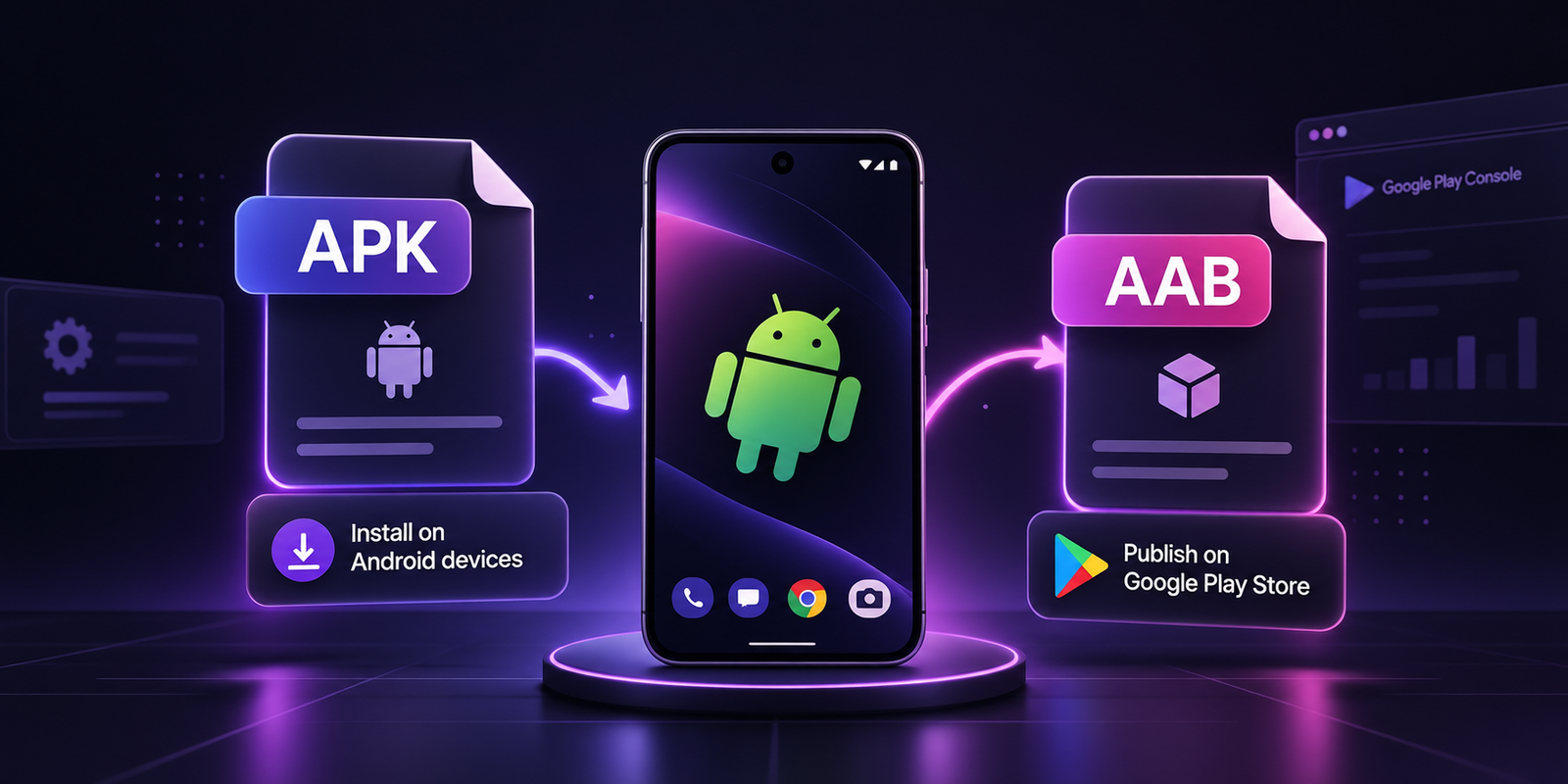
APK or AAB: which Android file do you need?
Understand the difference between Android test files and Google Play publishing files.
SEE IT ON YOUR OWN WEBSITE
Start with the site you already have.
Build a test version, check the customer journey on a real device, and choose your launch plan when you are ready.