Website to App
Convert Website to App: 9 Smart Steps for Android & iOS
Ready to convert a website into an app? Start with the site your customers already use, add a recognisable app identity and prove the experience on a real device. This convert website to app guide takes you from a working URL to a tested Android or iOS release, with practical checks for login, checkout, publishing and ongoing updates.
CONVERT WEBSITE TO APP · PRACTICAL TUTORIAL
One website.
Your next app.
Configure your identity, build in the cloud and test the customer journey before publishing.
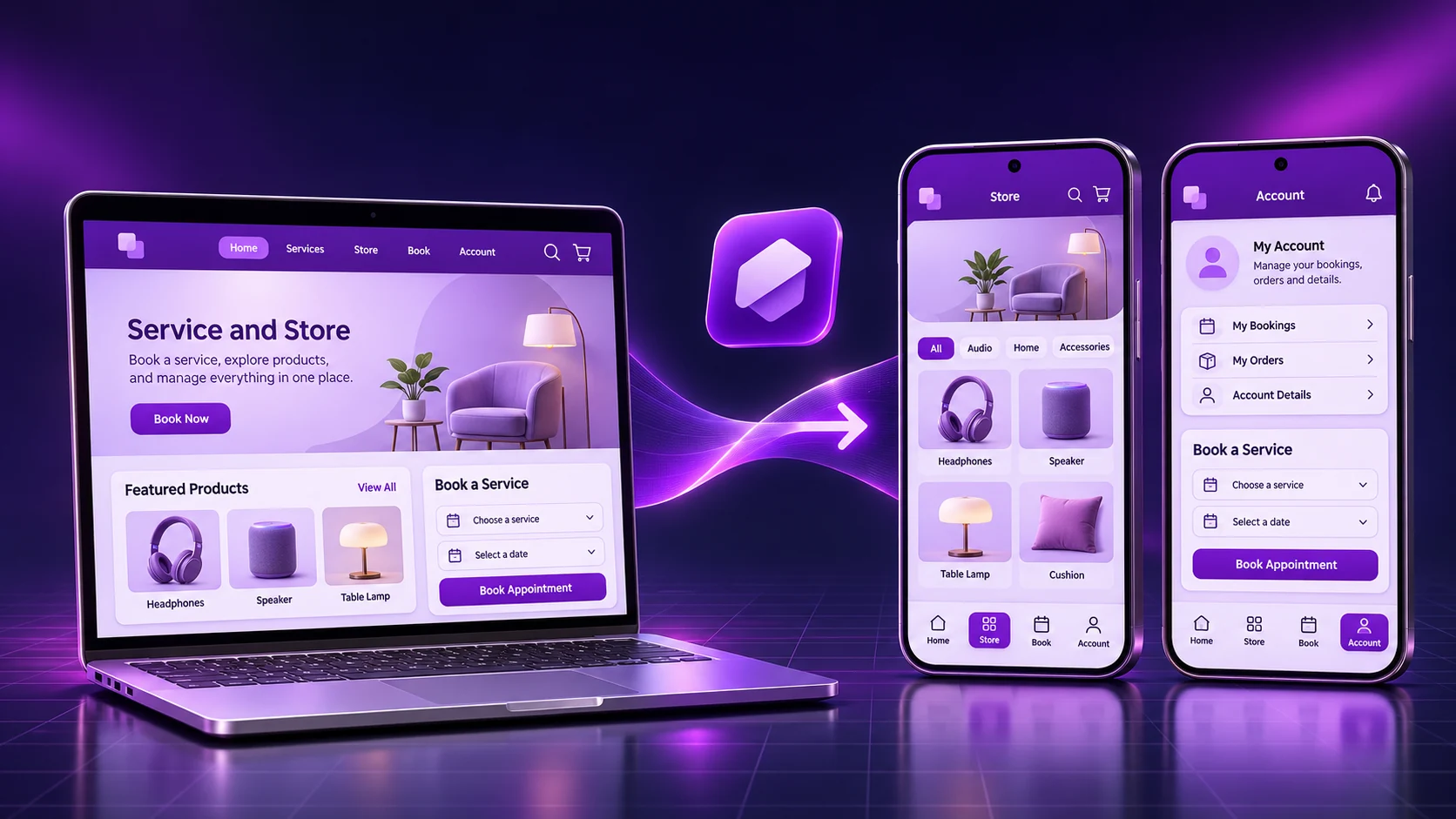
Original concept illustration; not a builder screenshot.
Still deciding whether an app fits your website and budget? Read our website to mobile app planning guide for seven decisions to make before starting the build.
Convert website to app: the short answer
To convert a website into an app without coding, use a compatible website-to-app builder, enter your HTTPS URL, choose your app name and branding, and generate a device test build. Test the complete customer journey, fix any blockers, then prepare the platform-specific build and store submission. Your website remains the source for its live content.
With AppCrafto, the initial workflow is URL → app identity → cloud build and test. Publishing follows once your app, accounts and listing are ready. Start with a free Android test project to evaluate your website before choosing a release plan.
This is a practical implementation tutorial published by AppCrafto. The walkthrough uses an illustrative business, not a live customer result or a measured time-to-launch promise. Feature and plan references were checked on 17 November 2026; verify your platform and website requirements before purchase.
What do you need before you convert a website to an app?
You need a mobile-friendly HTTPS website, permission to use its content and branding, and a clear task the app will help users complete. Gather your app name, icon, start URL and the accounts needed to test protected pages. Choose Android, iPhone or both before planning the release.
| Prepare | What good looks like | Why it matters |
|---|---|---|
| Website | HTTPS, readable mobile pages and working primary actions | An app does not repair a broken mobile site |
| Identity | Recognisable name, clear icon and consistent colours | Users can identify the app and its owner |
| Customer tasks | Three specific journeys with test accounts and expected outcomes | You can decide objectively whether the build works |
| Platform and ownership | Target devices, developer-account owner and release contact | Publishing and later updates have an accountable owner |
For example, a shop might prioritise finding a product, completing checkout and viewing an order. A service business might prioritise choosing a region, booking an appointment and managing the booking. A useful app helps users return to these tasks; installation alone is not the business outcome.
How does website-to-app conversion actually work?
A website-powered app typically loads your existing web experience inside a mobile app shell, often through an embedded browser called a WebView. The shell supplies supported app-level features, while the website continues providing its pages, customer accounts and server-side workflows.
One content source: your CMS serves the website; the app displays those live pages; supported app settings control the surrounding mobile experience. Website content changes and app-binary changes are different kinds of updates.
This model can save you from duplicating a working catalogue, booking engine or publication. It does not recreate your website as an independently designed native product. If the core requirement is extensive offline processing, specialist hardware or a different mobile interface, investigate PWA and native-development alternatives before committing.
Our website to app converter guide compares provider features and buying considerations. The rest of this article concentrates on executing and validating the conversion.
How to convert website to app: 9 practical steps
1. Define what a successful app must do
Write a short release brief before opening a builder. Name the target audience, first platform and three journeys that must work. Specify the result of each journey so that a reviewer can repeat it, rather than writing a vague goal such as “everything works”.
For a sample store, the brief could be: a signed-out customer finds an available product; a returning customer logs in and purchases using test payment; that customer opens the completed order. Record any required languages, delivery regions or accessibility needs.
2. Check the website on the target phones
Run those journeys in the mobile browser first. Inspect navigation, text size, forms, product options and keyboard behaviour. Use both the home page and important deep links. Fix website problems before interpreting an app test: otherwise you will not know where a failure originates.
Check your actual account system, payment gateway and plugins. A website working in one browser does not establish that every embedded-browser flow will work unchanged. Discuss unusual authentication, downloads or device permissions with AppCrafto support before choosing a paid release.
3. Create a project with the correct website URL
Create your AppCrafto account and use the public HTTPS address that should open when the app starts. Choose the canonical production site rather than a staging domain, expired preview link or URL containing your personal login session.
Confirm that redirects finish at the intended destination. If your business relies on a subdomain, multilingual route or account portal, include it in the compatibility discussion. Never put passwords or private access tokens in a public start URL.
4. Set the app name, icon and supported appearance
Use the business identity customers already recognise. Prepare a simple icon that remains legible at small sizes and check the available splash-screen, colour and navigation settings for your chosen platform. Follow the builder’s current asset specifications rather than stretching a small logo.
Choose important destinations around user tasks: browse, account, bookings and support might be more useful than reproducing every website menu. Check where the back button goes after a deep page, and ensure users can reach privacy information and help. Configure only features you intend to test.
5. Generate and install an Android test build
Generate the supported cloud build and save its version and configuration. AppCrafto’s free Android route lets you evaluate the real app experience before choosing a publishing plan. Follow the provider’s current instructions to obtain and install your own test file on a suitable device.
Understand the file types. An APK can be used for direct Android installation, while an AAB is a publishing package processed by Google Play. An AAB is not a normal tap-to-install APK. See our APK versus AAB explanation and the official Android App Bundle documentation.
6. Run an end-to-end acceptance test
Start from a clean session and repeat the brief from step one. Test the normal path and recovery: sign out and in again, deny an optional permission, close and reopen the app, and retry after losing connectivity. Check external links and return journeys.
For payments, use the gateway’s test environment and confirm both the website’s order state and the screen shown after returning to the app. Record a failure with the device model, OS version, build version, steps and expected result. The app testing guide provides a fuller checklist.
7. Validate iPhone support and the release plan
If the app needs iPhone support, confirm the selected plan and complete the iOS build and device-testing workflow. Do not treat a successful Android test as evidence that iOS authentication, permissions or external links work identically.
AppCrafto lists Pro for Android and iPhone; Free and Launch are Android plans. Push notifications are included in the Free Android plan. Configure and test notification permissions and delivery before planning campaigns. Compare current plans and rebuild access, including the support your team needs after launch.
8. Prepare a complete store submission
Prepare the appropriate developer account, publishing file, screenshots, description, support contact and privacy disclosures. Provide the access reviewers need for protected features. Check account ownership and submission responsibilities when a service provider is assisting you.
Use our Google Play preparation guide or iPhone submission guide. Resolve review feedback and follow any account-specific testing requirements. A build being ready and a store approving the submission are separate events.
9. Monitor, update and retest after launch
Publish routine content through your existing website, then check it in the app. Monitor customer reports and repeat the main tasks after significant CMS, theme, login or payment changes. Caching and session state can affect what an individual user sees.
Rebuild when app-level configuration, native integrations or platform requirements require a new binary. Keep a release log, preserve authorised access to signing and developer accounts, and assign someone to handle future review requests. Conversion starts the app lifecycle; maintenance keeps the experience useful.
Worked example: convert a service website into an app
Consider a fictional home-services business called Cedar Home Care. Its website already lists service areas, lets customers book a time and provides an account page. The owner wants returning customers to manage appointments without maintaining a second booking system.
- Input: the production HTTPS website, brand assets and a test customer account. No new booking engine is assumed.
- Configuration: use the business name and icon, choose supported navigation, and make booking, account and help routes easy to reach.
- Build: generate the Android test package and record its version.
- Acceptance: book a test appointment, confirm it appears in the account, change or cancel it, and check the resulting website record.
- Release decision: proceed only after the business can repeat those tasks. Investigate failures before scheduling store publication.
The practical saving is reuse: services and availability remain in the same website system. This example does not claim measured cost reductions or universal plugin compatibility. For an actual project account, read the Asbaab Services WordPress booking-app case study.
Can you convert website to app for free on Android and iOS?
You can start with a free Android test build on AppCrafto. That does not mean every platform, branding choice or publishing service is free. Check the selected plan for iPhone support, rebuild access and assistance, and budget separately for developer accounts and website operations.
| Your goal | Practical starting point | Confirm before release |
|---|---|---|
| Try the existing website as an app | Free Android test project | Installation and successful completion of key tasks |
| Publish an Android app | Evaluate Launch and its included publishing support | Build files, account requirements, branding and maintenance |
| Release on Android and iPhone | Evaluate Pro and test both platforms | iOS configuration, accounts, device testing and store submissions |
As checked on 17 November 2026, the monthly pricing references are $5 for Launch and $14 for Pro; annual and one-time options are also listed. These are plan prices, not a complete project quote. Confirm current terms, applicable charges and your feature requirements before purchase.
Convert website to app troubleshooting: what if a test fails?
Compare the same task in the mobile browser and app before changing settings. If it fails in both, investigate the website. If it fails only in the app, collect a reproducible example for the provider. This avoids changing multiple systems without knowing which change helped.
| Symptom | First check | Useful evidence |
|---|---|---|
| Blank page or unexpected redirect | Start URL, HTTPS and the final destination | URL, device, connection and exact screen reached |
| Login does not complete | Authentication method, cookies and external return flow | Test steps and account type, without exposing credentials |
| Checkout returns to the wrong screen | Gateway test flow and website order status | Test transaction reference and expected confirmation |
| Upload or permission fails | Supported capability and the permission decision | File type, device, build and reproducible steps |
| Old content remains visible | Website caches, app/session state and whether the change is content or app configuration | Changed page, expected content and time checked |
Do not add a promised launch date to an unresolved compatibility issue. A clear failure report makes diagnosis easier; it does not establish a particular technical cause until someone investigates it.
Will a converted website pass Google Play and App Store review?
Store approval depends on the app and submission, not simply on the fact that a build was generated. Plan meaningful user tasks, dependable navigation, usable mobile content and accurate declarations. A thin promotional site gives reviewers and users less reason to treat it as a useful application.
Apple’s App Review Guidelines address minimum functionality in section 4.2 and commercial app-generation services in section 4.2.6. Google Play’s functionality and user-experience policy addresses limited and broken apps. Read the current requirements for your content and release model.
Allow time for testing and review. Some Play accounts have a testing process before production access; the Google Play closed-testing guide explains the topic. For paid digital content or other specialised categories, review the relevant store rules rather than assuming an existing web payment flow is sufficient.
Convert website to app: final launch checklist
| Release gate | Pass condition |
|---|---|
| Usefulness | The app delivers a clear, repeatable customer task |
| Functionality | Login, main journey, external returns and error recovery work on target devices |
| Content and identity | Correct brand assets and current content, with accessible support/privacy information |
| Submission | Required accounts, files, screenshots, access and declarations are prepared |
| Maintenance | A named owner can monitor issues, retest and coordinate future builds |
For an online shop, also use the WooCommerce app checklist or Shopify builder buying guide. Those guides address commerce-specific requirements that a general conversion tutorial cannot establish for your individual store.
Convert website to app: frequently asked questions
How can I convert a website into an app without coding?
Use a compatible builder, enter your website URL, configure the app identity and generate a test build. Test the real customer journey before preparing the publishing files and store submission. Technical work may still be needed if the website or an integration is incompatible.
Can I convert a website to an Android app for free?
AppCrafto offers a free Android testing route. Check its current limits and branding, then use the build to verify your website on a real device. Additional platform coverage, features or publishing assistance depend on the chosen plan.
Can I convert the same website into an iOS app?
Yes, with a provider and plan that support iOS. AppCrafto lists Pro for Android and iPhone. Complete the iOS configuration, account preparation and device testing; an Android APK is not an iPhone build.
How long does website-to-app conversion take?
Configuration and build generation are only part of the schedule. Website fixes, integration testing, developer-account preparation and store review can add time. Estimate the release after checking your requirements rather than treating a quick preview as a completed launch.
Will my website content stay in sync with the app?
A website-powered app loads live website content, so ordinary CMS changes can appear without recreating them in another publishing system. Caches and sessions can affect visibility. Native features and app configuration may require a new build.
Can the app use my existing website login and checkout?
The approach aims to reuse existing website journeys, but compatibility is specific to the website and integrations. Test sign-in, redirects, cookies, payments and return screens on every target platform before choosing a release plan.
Does website conversion create a completely separate native product?
No. A website-powered app generally uses your existing web experience with an app shell and supported native features. It does not automatically redesign the product as an independent native interface or add missing website functionality.
Will an app converted from a website work offline?
Do not assume full offline support. Live accounts, bookings, stock and payments typically need connectivity. Ask about supported caching and test it. Extensive offline workflows may require a different architecture.
Do I need developer accounts to publish the converted app?
Store publication requires the applicable developer-account and submission workflow. Clarify ownership, fees, access and the assistance included in your plan. Apple and Google make the final review decision.
When do I need to rebuild after converting a website?
Rebuild when app-level settings, native integrations or platform requirements require a new binary. Ordinary website content can be served through the existing app. Retest important journeys after major website changes even when a rebuild is not required.
Convert website to app with a clear next step
Choose one useful customer journey, prepare the website and prove it in a test build. AppCrafto lets you evaluate a website-powered Android or iOS app while keeping your content in the system you already maintain.
Start a free Android test project, follow the AppCrafto workflow and review publishing plans after the essential checks pass. If your project has unusual login, device or payment requirements, ask about compatibility first.
KEEP READING
More from the AppCrafto blog
APPCRAFTO GUIDE
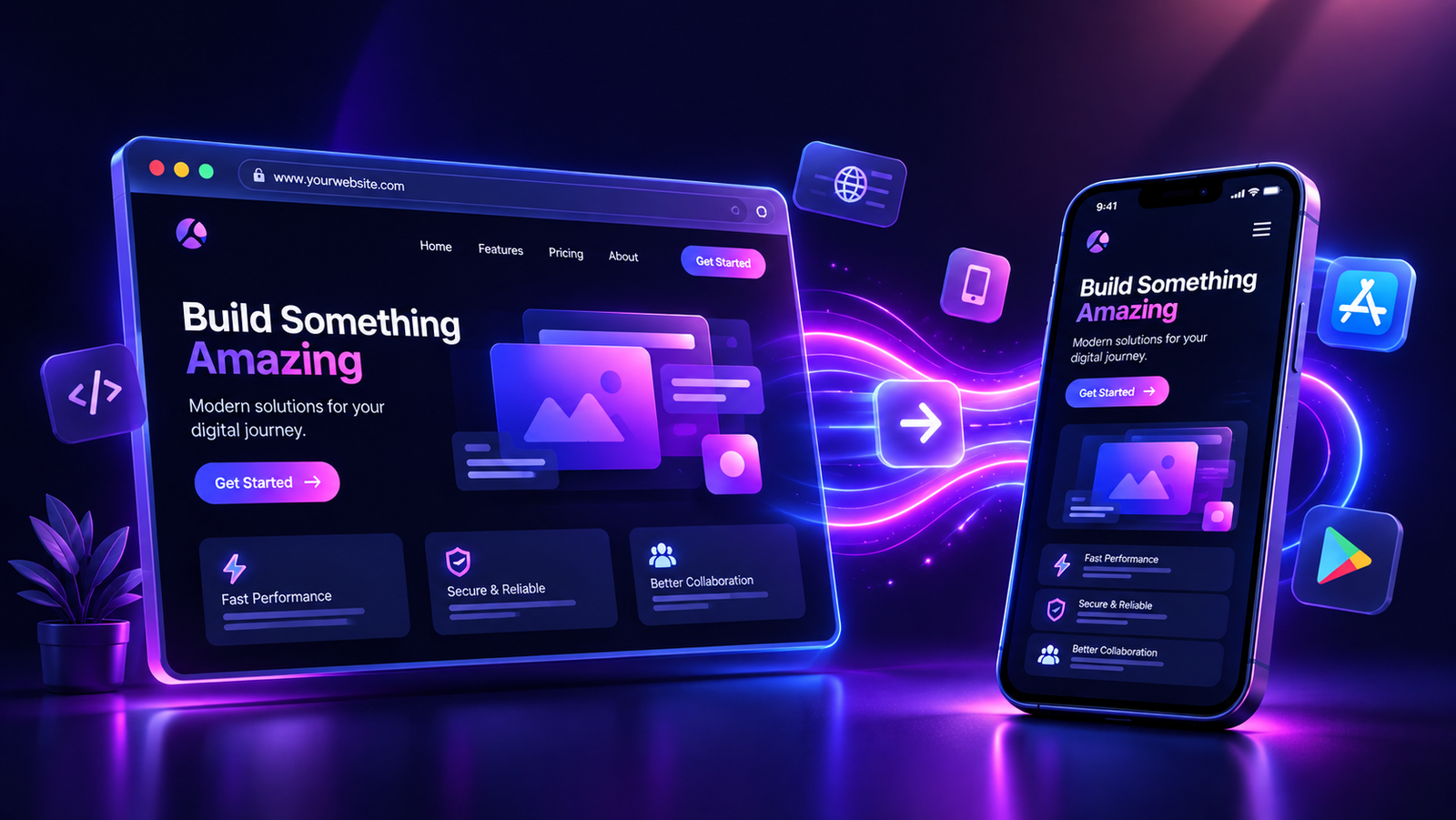
Learn how to turn a working website into an Android or iOS app: compare converters, understand free plans, test real journeys and prepare your release.
APPCRAFTO GUIDE
Test the customer journeys that matter instead of checking only the home screen.
APPCRAFTO GUIDE
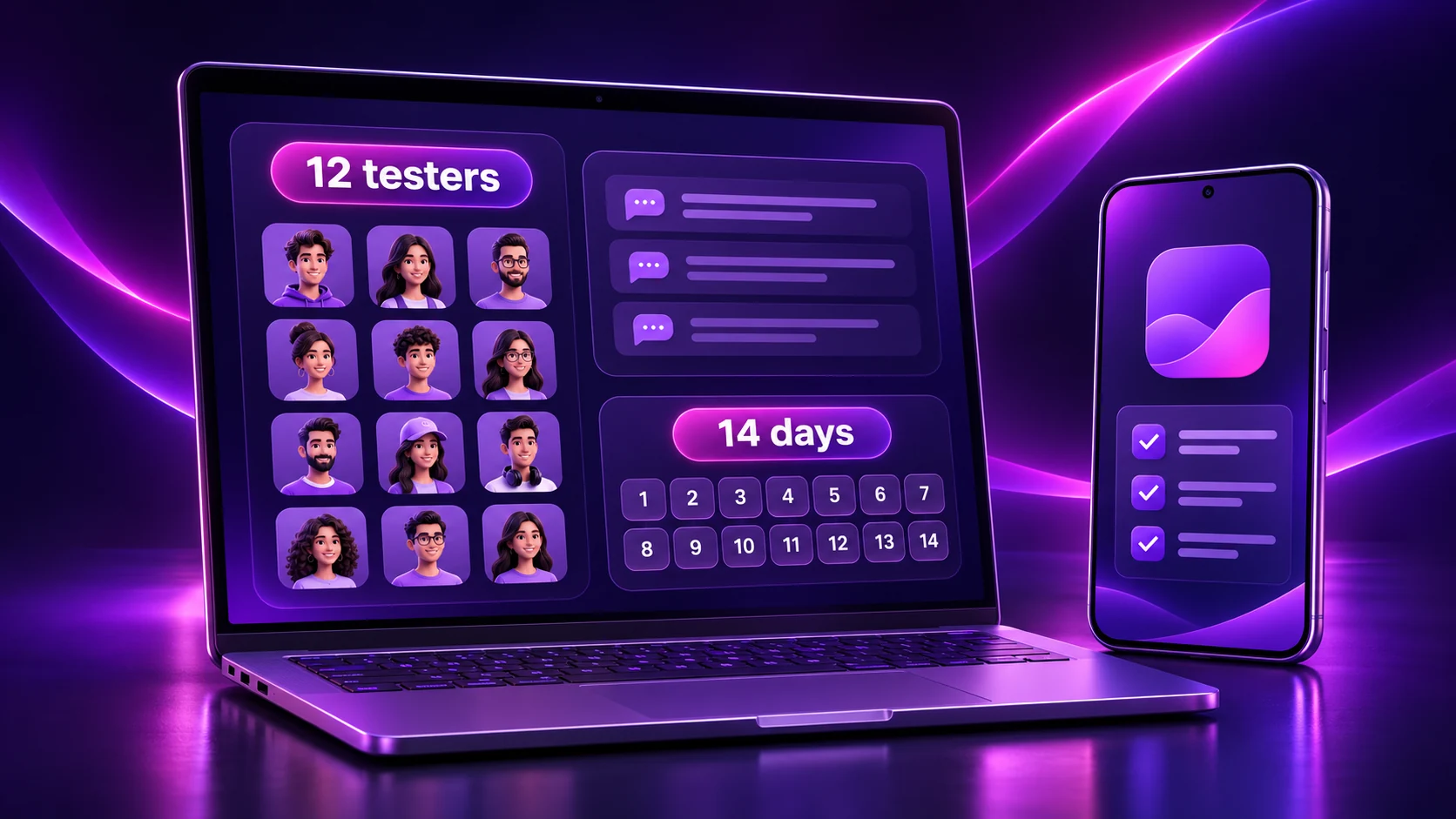
A practical guide to account eligibility, continuous tester opt-in, closed-test setup, useful feedback and the production-access application.
SEE IT ON YOUR OWN WEBSITE
Test the website you already run.
Create a free Android test build, check your essential journeys on a real device and choose a publishing plan when you are ready.